Claude Desktop × Model Context Protocol
Import bank data into Claude (Desktop)
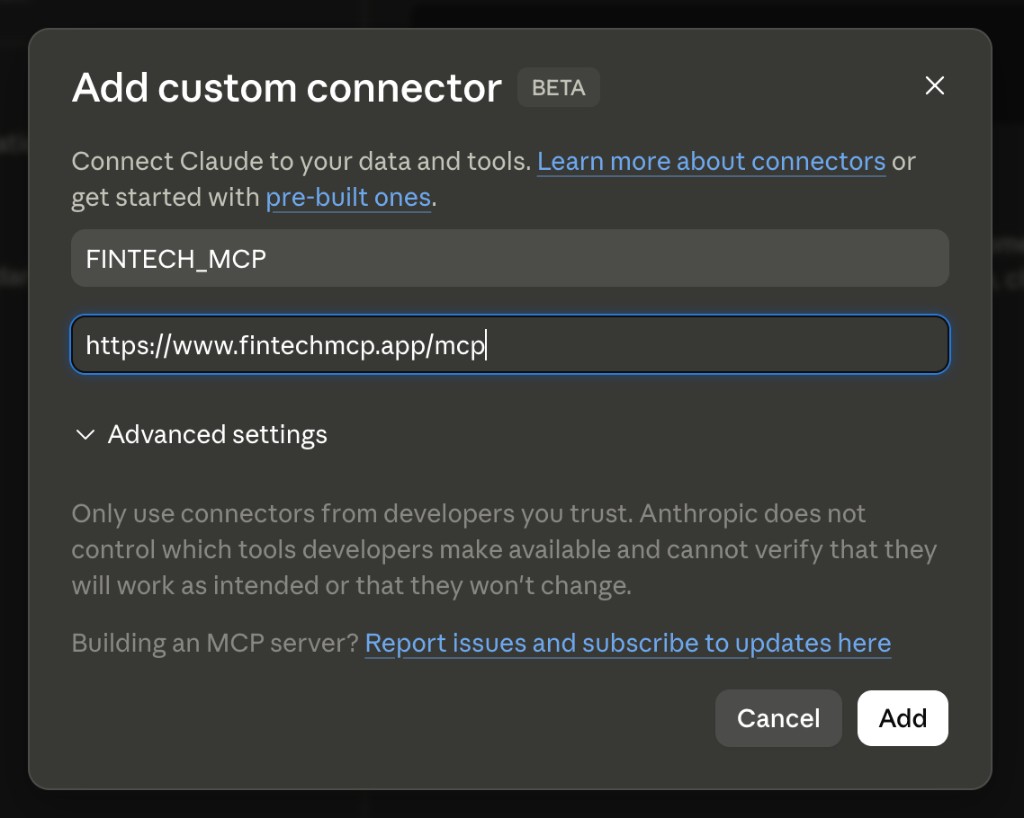
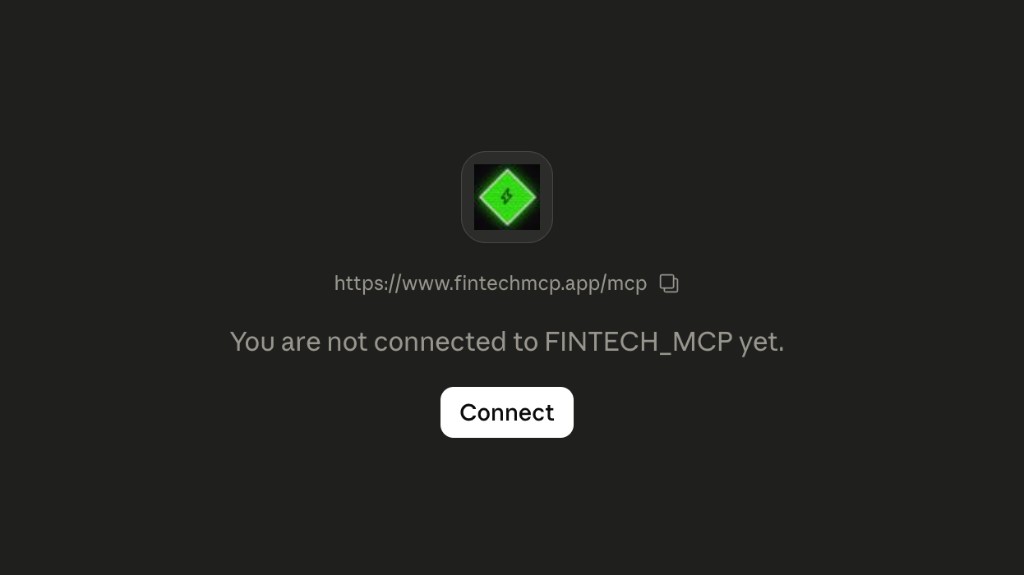
To import bank data into Claude without emailing spreadsheets or pasting credentials, connect FINTECH_MCP as a remote MCP server. Follow the steps below to add the connector, authorize with OAuth, and ask Claude about your finances.
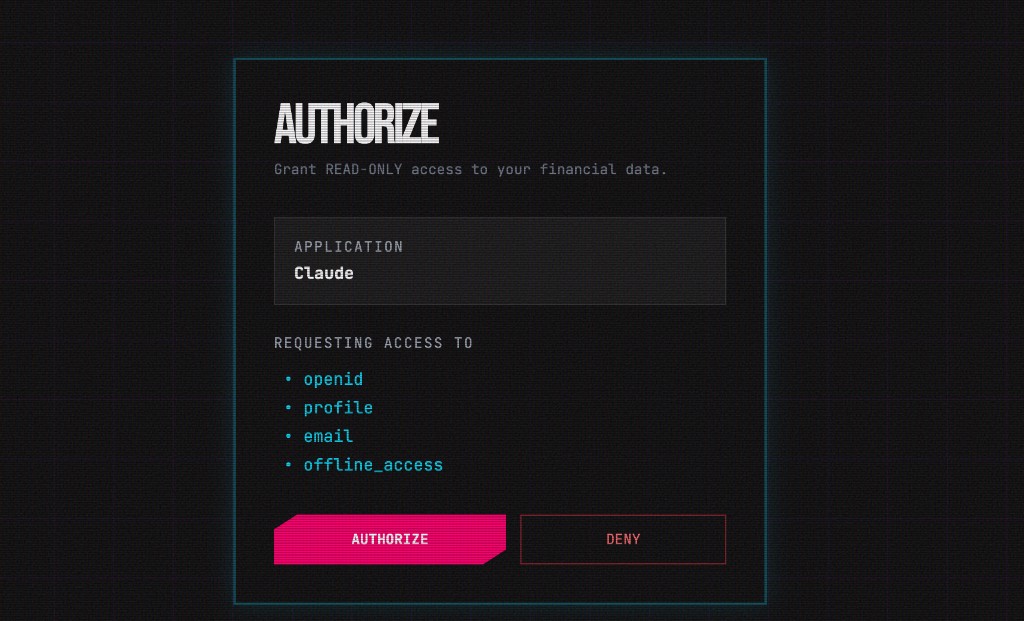
Secure, read-only bank connections
You link banks and brokerages in your FINTECH_MCP dashboard through Plaid, the same connection layer used by major financial apps. Plaid handles login with your institution — Claude never sees your bank password, and FINTECH_MCP stores only encrypted access tokens, not credentials.
When Claude calls FINTECH_MCP, it gets read-only tool results: balances, transactions, spending breakdowns, and investment holdings. There are no tools to move money, initiate transfers, or change your accounts. You authorize access through OAuth and can revoke it anytime from your dashboard.
MCP URL
https://www.fintechmcp.app/mcp
OAuth 2.1 — Claude opens the FINTECH_MCP login page the first time you use a financial tool.
Configure remote servers in the Connectors UI, not claude_desktop_config.json.
How to connect bank data in Claude Desktop
https://www.fintechmcp.app/mcpWhat it looks like
Analyze your finances in Claude
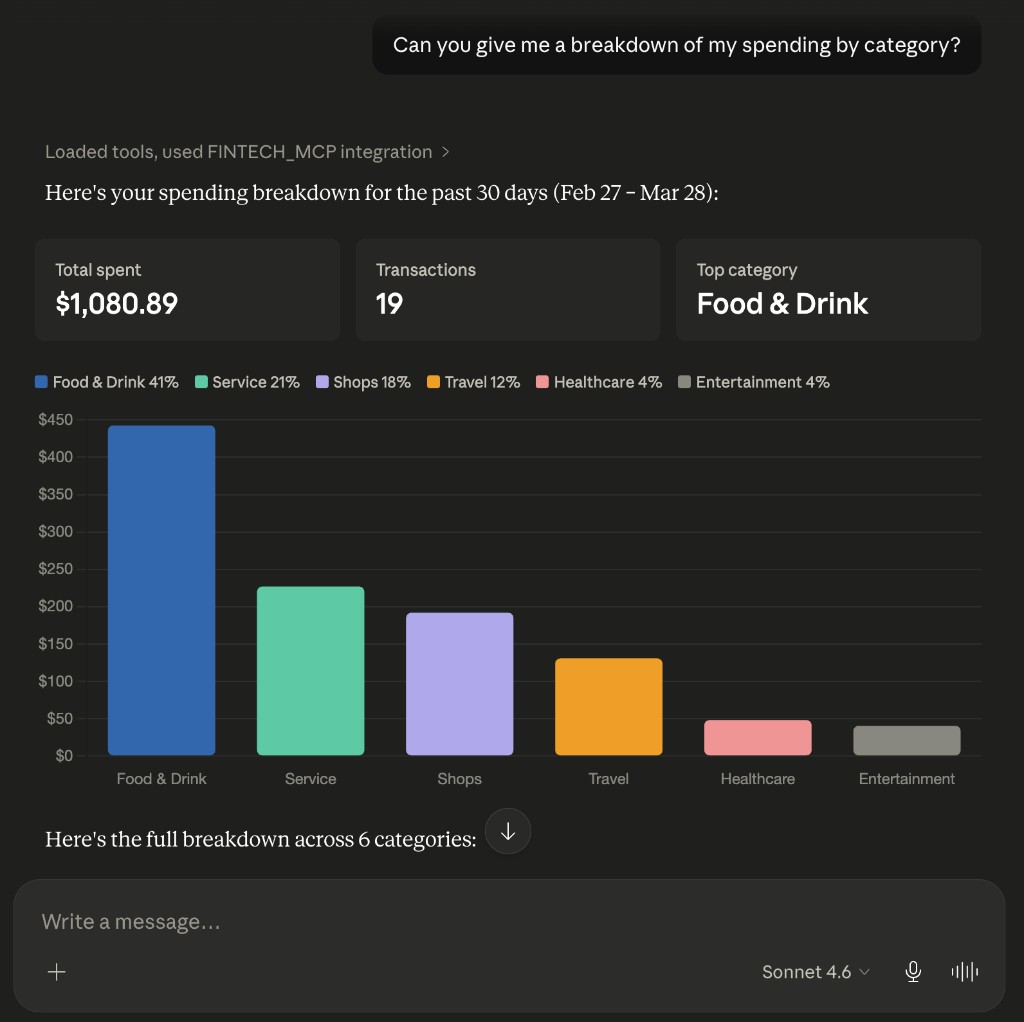
Once connected, Claude pulls live data through FINTECH_MCP and can work with it like a personal analyst — summarizing accounts, filtering transactions, and answering follow-up questions in plain language.
Ask for spending totals by category (groceries, dining, subscriptions, travel) or drill into specific merchants. Claude can group transactions, compare months, flag recurring charges, and highlight where your money is going.
Responses can include markdown tables for line-by-line detail, charts and graphs for category breakdowns, and simple trend views over a date range. Claude can also render interactive artifacts — useful for exploring spending slices or portfolio allocation visually.
Investment holdings, net worth across accounts, and cash-flow summaries work the same way: ask naturally, and Claude calls the read-only tools to build grounded answers.
Example questions to ask Claude about your finances
Once FINTECH_MCP is connected, try asking Claude naturally — it will call the read-only tools and format the results as tables, summaries, or charts.
Spending & categories
- “Show my spending by category last month as a table.”
- “Chart my top 10 merchants this quarter.”
- “Compare dining vs groceries over the past 3 months.”
- “How much did I spend on subscriptions last month?”
- “Break down my spending by category for January through March.”
- “Am I spending more on dining out than last quarter?”
- “What percentage of my income went to discretionary spending this month?”
Merchants & transactions
- “List all Amazon transactions from the past 60 days.”
- “Show every charge from Netflix, Spotify, and Apple in the last year.”
- “What were my 5 largest purchases last month?”
- “Find recurring charges over $20 per month.”
- “Show transactions over $500 from the past 6 months.”
- “Search for any Uber or Lyft charges in the past 90 days.”
Accounts & balances
- “What are my current checking and savings balances?”
- “List all linked accounts with their current balances.”
- “What is my net worth across all accounts?”
- “How much did I earn vs spend last month?”
- “Which account had the most activity this week?”
Investments
- “What are my current investment holdings?”
- “Show my portfolio allocation as a pie chart.”
- “List investment transactions from this year.”
- “What is the total value of my brokerage accounts?”
- “Which holdings gained or lost the most value recently?”
Charts & summaries
- “Plot my monthly spending trend for the past 6 months.”
- “Create a bar chart of spending by category for Q1.”
- “Summarize my finances in a table: income, expenses, and savings rate.”
- “Give me a weekly spending summary for the past month.”
- “Visualize my cash flow — inflows vs outflows — for the last quarter.”
Also using ChatGPT? Import bank data into ChatGPT · All MCP clients